


1. Introduction to WHMCS
WHMCS (Web Host Manager Complete Solution) is an all-in-one platform designed to automate web hosting business operations. It enables hosting providers to manage billing, client accounts, support tickets, and domain registrations effortlessly. With WHMCS, businesses can reduce manual workload and focus on scaling their services.
Key features of WHMCS include:
- Automated billing and invoicing
- Domain registration and management
- Support ticket system
- Customizable client portal
- Integration with popular payment gateways and hosting control panels

2. System Requirements and Installation
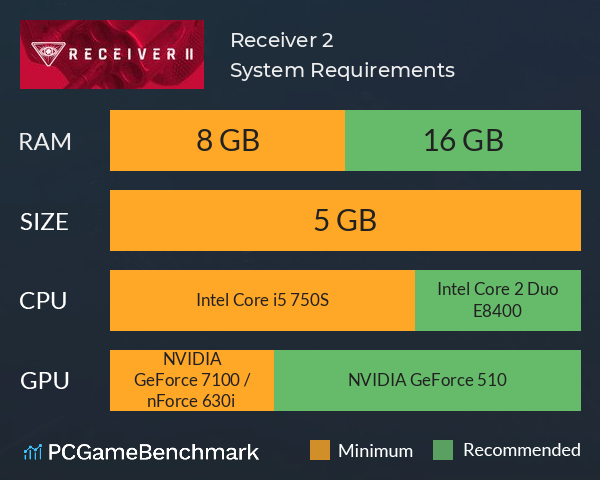
Before installing WHMCS, ensure your server meets the following requirements:
- PHP 7.4 or later
- MySQL 5.7+ or MariaDB
- IonCube Loader
- A web server (Apache or Nginx)
Installation Steps
- Download WHMCS – Get the latest version from the official WHMCS website.
- Upload Files – Use FTP or cPanel’s File Manager to upload WHMCS files to your server.
- Create a Database – Set up a MySQL database and user via cPanel or a similar hosting control panel.
- Run the Installation Script – Access your domain’s WHMCS setup page (e.g.,
yourdomain.com/install) and follow the on-screen instructions. - License Activation – Enter your WHMCS license key to complete the setup.
3. Configuring WHMCS for Your Hosting Business
After installation, you need to configure WHMCS to match your business needs.
General Settings
- Company Details – Enter your business name, logo, and contact details.
- Localization – Set currency, language, and timezone.
- Email Configuration – Integrate SMTP or PHP mail to send invoices and notifications.
Integrating Hosting Control Panels
WHMCS supports integration with control panels like cPanel, Plesk, and DirectAdmin. To connect:
- Go to Setup > Products/Services > Servers.
- Click Add New Server, enter server details, and select the control panel module.
- Test the connection to ensure integration is successful.

4. Automating Billing and Client Management
One of WHMCS’s biggest advantages is its automation capabilities.
Setting Up Payment Gateways
WHMCS supports PayPal, Stripe, Authorize.net, and other payment gateways. To configure:
- Navigate to Setup > Payments > Payment Gateways.
- Choose your preferred gateway and enter API credentials.
- Enable automatic invoice generation and recurring billing.
Automating Hosting Account Creation
To automatically set up hosting accounts after payment:
- Go to Setup > Products/Services and create a new product.
- Assign a server and enable Auto Setup after payment confirmation.
- Set up welcome emails with login details.

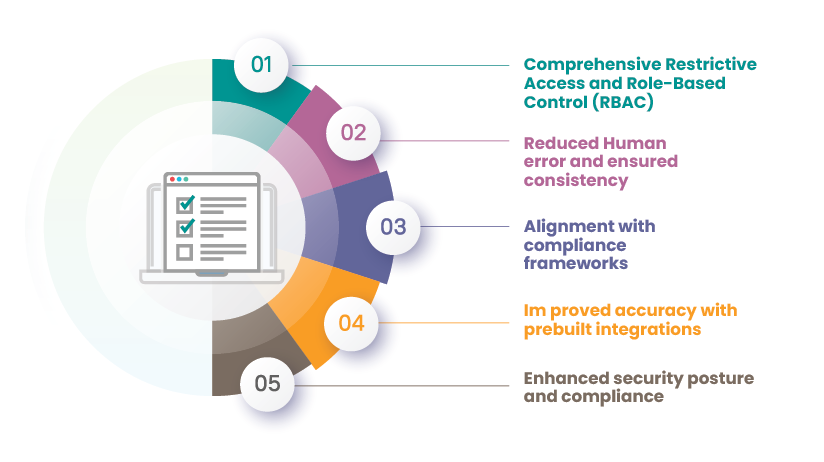
5. Enhancing Security and Compliance
Security is crucial for any WHMCS setup to protect client data and transactions.
Security Best Practices
- Use SSL Encryption – Secure your WHMCS portal with an SSL certificate.
- Enable Two-Factor Authentication (2FA) – Require 2FA for admin and client logins.
- Restrict Admin Access – Allow access only from trusted IP addresses.
Compliance and Data Protection
- GDPR Compliance – WHMCS provides tools for data export and consent management.
- PCI-DSS Compliance – Secure payment transactions with encrypted storage.





Comments 0
Sign in to join the conversation.
No comments yet. Be the first to say something.