


Table of Contents
- Optimize Images for Faster Loading
- Use a Caching Plugin
- Upgrade to a Faster Web Hosting Plan
- Minimize Plugins and Optimize Code
- Enable a Content Delivery Network (CDN)
1. Optimize Images for Faster Loading
Large, unoptimized images can slow down your WordPress site significantly. By compressing and resizing images, you can reduce page load times without sacrificing quality. Here’s how to optimize images effectively:
- Use Compression Tools: Plugins like Smush, TinyPNG, and ShortPixel automatically compress images without noticeable quality loss.
- Resize Images Before Uploading: Upload images with the correct dimensions to avoid unnecessary resizing by WordPress.
- Use Next-Gen Formats: Convert images to modern formats like WebP, which loads faster than JPEG or PNG.
Optimizing images can cut page load times by up to 50%, providing a smoother browsing experience for your visitors.
2. Use a Caching Plugin
Caching stores static versions of your website pages, allowing them to load faster for returning visitors. Without caching, WordPress generates pages dynamically, increasing load times. Here’s how caching improves performance:
- Install a Caching Plugin: Plugins like WP Rocket, W3 Total Cache, and WP Super Cache create and serve static versions of your pages.
- Enable Browser Caching: This allows repeat visitors to load pages instantly without downloading assets again.
- Use Object Caching for Dynamic Sites: If your site has a lot of dynamic content, enabling object caching (e.g., using Redis or Memcached) improves response times.
Implementing caching can reduce page load times by up to 80%, making your WordPress site much faster.
3. Upgrade to a Faster Web Hosting Plan
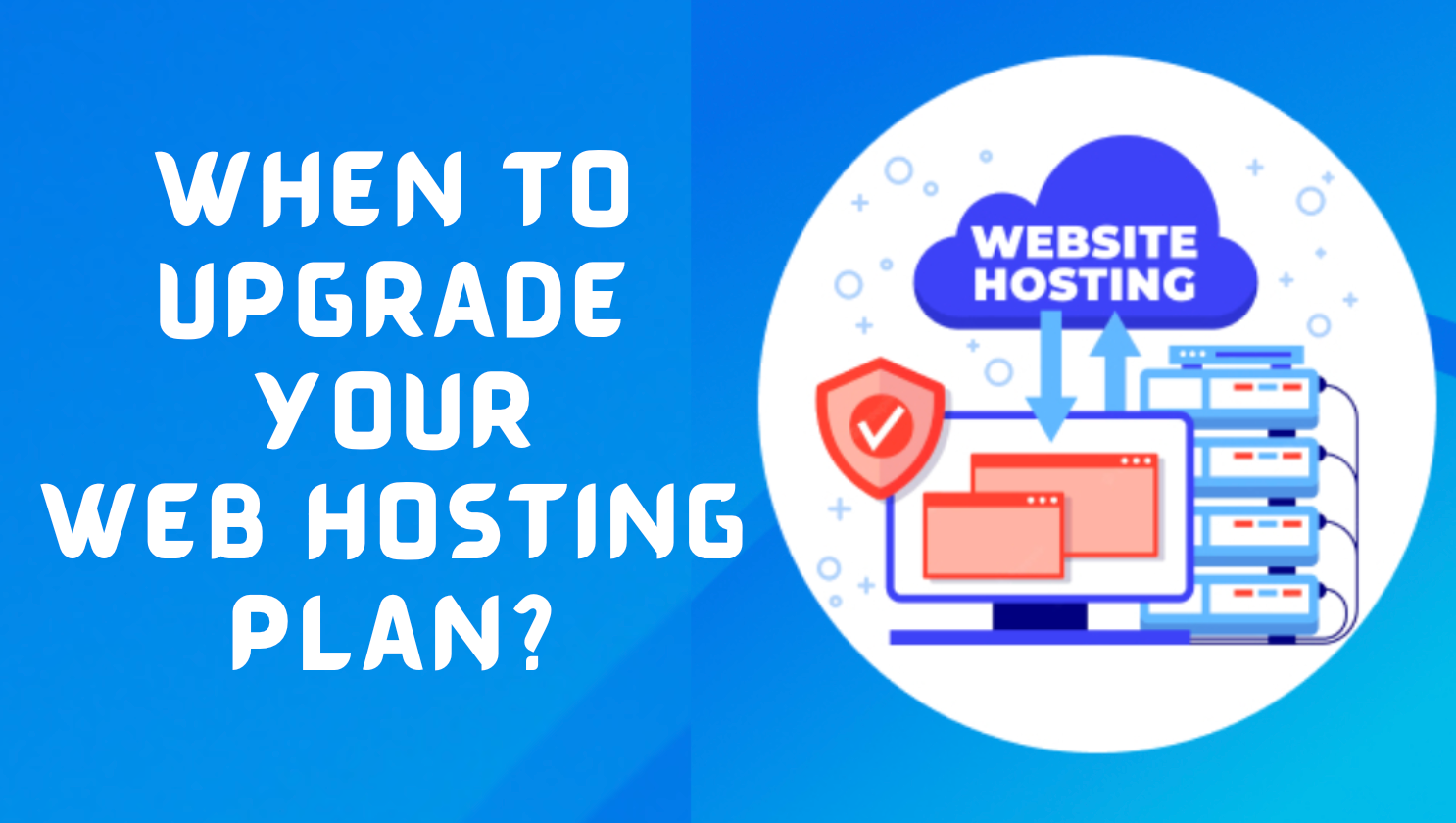
Your web hosting provider plays a crucial role in your site’s speed. Shared hosting can slow down performance due to limited resources and server overload. Consider upgrading to:
- SSD Hosting: Solid State Drive (SSD) hosting offers faster data access than traditional HDD hosting.
- Managed WordPress Hosting: Optimized for speed, managed hosting includes built-in caching, CDN, and performance enhancements.
- VPS or Dedicated Hosting: If your site has high traffic, upgrading to a Virtual Private Server (VPS) or dedicated server provides better performance.
Choosing the right hosting can drastically improve website speed, reducing loading times and improving user experience.
4. Minimize Plugins and Optimize Code
Too many plugins and poorly optimized code can slow down WordPress. Follow these best practices to streamline your site:
- Deactivate and Delete Unused Plugins: Only keep essential plugins. Too many active plugins increase processing time.
- Use Lightweight Themes: Choose a well-coded, performance-optimized theme like GeneratePress, Astra, or Neve.
- Minify CSS, JavaScript, and HTML: Tools like Autoptimize and WP Rocket reduce file sizes, improving page speed.
- Enable Lazy Loading: Load images and videos only when they come into view to prevent unnecessary resource usage.
By optimizing your WordPress site’s code, you reduce page load times and improve efficiency.
5. Enable a Content Delivery Network (CDN)
A Content Delivery Network (CDN) speeds up your WordPress website by distributing content across multiple global servers. Instead of loading your website from a single location, a CDN serves files from the nearest server to the visitor.
Benefits of Using a CDN:
- Faster Load Times Worldwide: Visitors from different regions experience fast page loading speeds.
- Reduced Server Load: Offloads traffic from your main server, improving stability.
- Better Security: Many CDNs offer DDoS protection and SSL encryption for enhanced security.
Popular CDN providers include Cloudflare, BunnyCDN, and KeyCDN. Enabling a CDN can cut loading times by up to 50%, especially for international visitors.






Comments 0
Sign in to join the conversation.
No comments yet. Be the first to say something.