

Table of Contents
- Understanding PHP and Its Role in Web Development
- Why Changing the PHP Version Matters
- How to Check the Current PHP Version in cPanel
- Step-by-Step Guide to Changing PHP Version in cPanel
- Troubleshooting Common PHP Version Issues
- Best Practices for Managing PHP Versions
1. Understanding PHP and Its Role in Web Development
PHP (Hypertext Preprocessor) is a server-side scripting language widely used for web development. It powers major content management systems (CMS) like WordPress, Joomla, and Drupal, as well as custom-built applications. PHP enables dynamic content generation, database interactions, and seamless functionality in web applications.
As PHP evolves, newer versions introduce security improvements, performance enhancements, and additional features that improve web development efficiency. However, outdated PHP versions can pose security risks and compatibility issues. Understanding how PHP functions and its impact on website performance is crucial for web administrators.
2. Why Changing the PHP Version Matters
Updating PHP is critical for website security and performance. Older PHP versions often reach their end-of-life (EOL), meaning they no longer receive security patches or updates. Running an outdated PHP version can expose websites to vulnerabilities, slow loading speeds, and compatibility problems with modern applications.
By switching to a supported PHP version, web administrators benefit from:
- Improved website performance with optimized execution speed
- Enhanced security through patched vulnerabilities
- Compatibility with the latest CMS updates, plugins, and frameworks
- Newer PHP features that streamline coding and debugging
Website owners should periodically check their hosting environment and upgrade PHP to maintain a secure and efficient web presence.
3. How to Check the Current PHP Version in cPanel
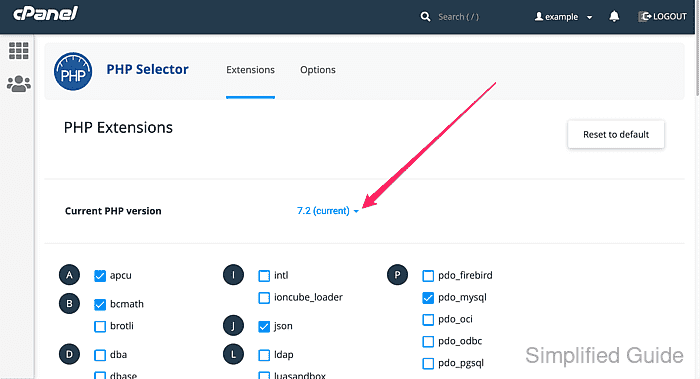
Before changing PHP versions, it’s essential to determine the version currently in use. This can be done easily in cPanel:
- Log in to your cPanel account.
- Scroll down to the Software section and click Select PHP Version.
- The current PHP version will be displayed at the top of the page.
Additionally, users can check their PHP version using a simple PHP script:
By creating a file with the above script and running it in a browser, users can view detailed PHP configuration settings.
4. Step-by-Step Guide to Changing PHP Version in cPanel
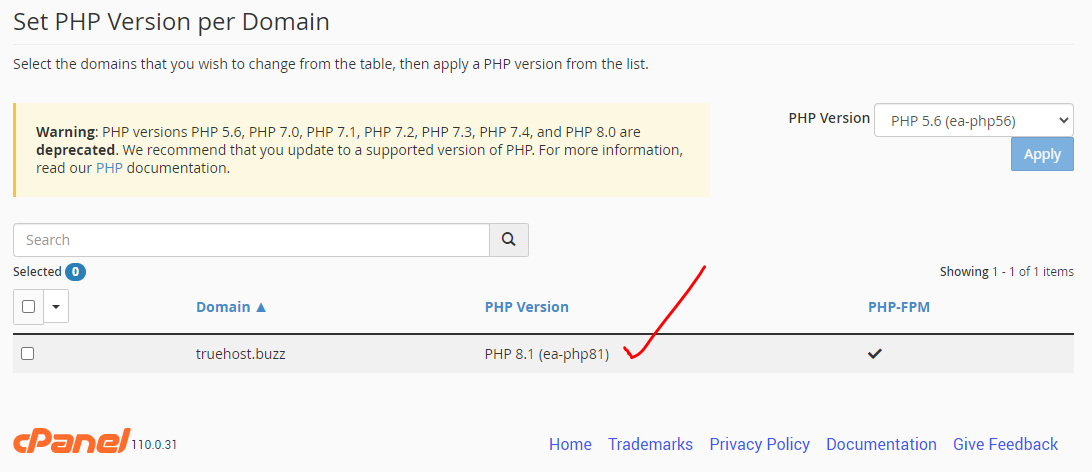
Changing the PHP version in cPanel is a straightforward process. Follow these steps:
- Log into cPanel – Access your hosting account and navigate to cPanel.
- Locate PHP Selector – Find the Select PHP Version option under the Software section.
- Choose a New PHP Version – Click the dropdown menu and select the desired PHP version.
- Set as Current – Click Set as current to apply the change.
- Adjust PHP Extensions – Enable or disable PHP extensions based on your website’s requirements.
- Save Changes – Once modifications are complete, save the settings to finalize the update.
After making changes, it is recommended to test website functionality to ensure all applications run smoothly under the new PHP version.
5. Troubleshooting Common PHP Version Issues
After switching PHP versions, some websites may encounter issues. Here are common problems and solutions:
- White Screen of Death (WSOD) – Some plugins or themes may not be compatible with the new PHP version. Revert to the previous version or update plugins/themes.
- Error Messages or Deprecated Functions – Review error logs in cPanel or enable debugging to identify problematic scripts.
- Database Connection Issues – Ensure that MySQL and PHP versions are compatible. Upgrading MySQL may be necessary.
- Broken Website Layout or Features – Some PHP functions may behave differently in newer versions. Checking code compatibility and making necessary modifications can resolve the issue.
Testing changes in a staging environment before applying them to a live site is always recommended.
6. Best Practices for Managing PHP Versions
To ensure optimal website performance and security, consider these best practices when managing PHP versions:
- Regularly Update PHP – Stay informed about new PHP releases and upgrade accordingly.
- Backup Before Changing PHP Versions – Always create a full site backup before making changes.
- Test in a Staging Environment – Before upgrading PHP, test changes in a development environment to prevent disruptions.
- Update CMS, Themes, and Plugins – Ensure that your website software is compatible with the selected PHP version.
- Monitor Performance – Use performance monitoring tools to track website speed and detect issues post-upgrade.
By following these best practices, website owners can ensure a smooth transition when updating PHP versions while maintaining security and stability.


You must be logged in to post a comment.