


1. Choosing the Right WordPress Theme
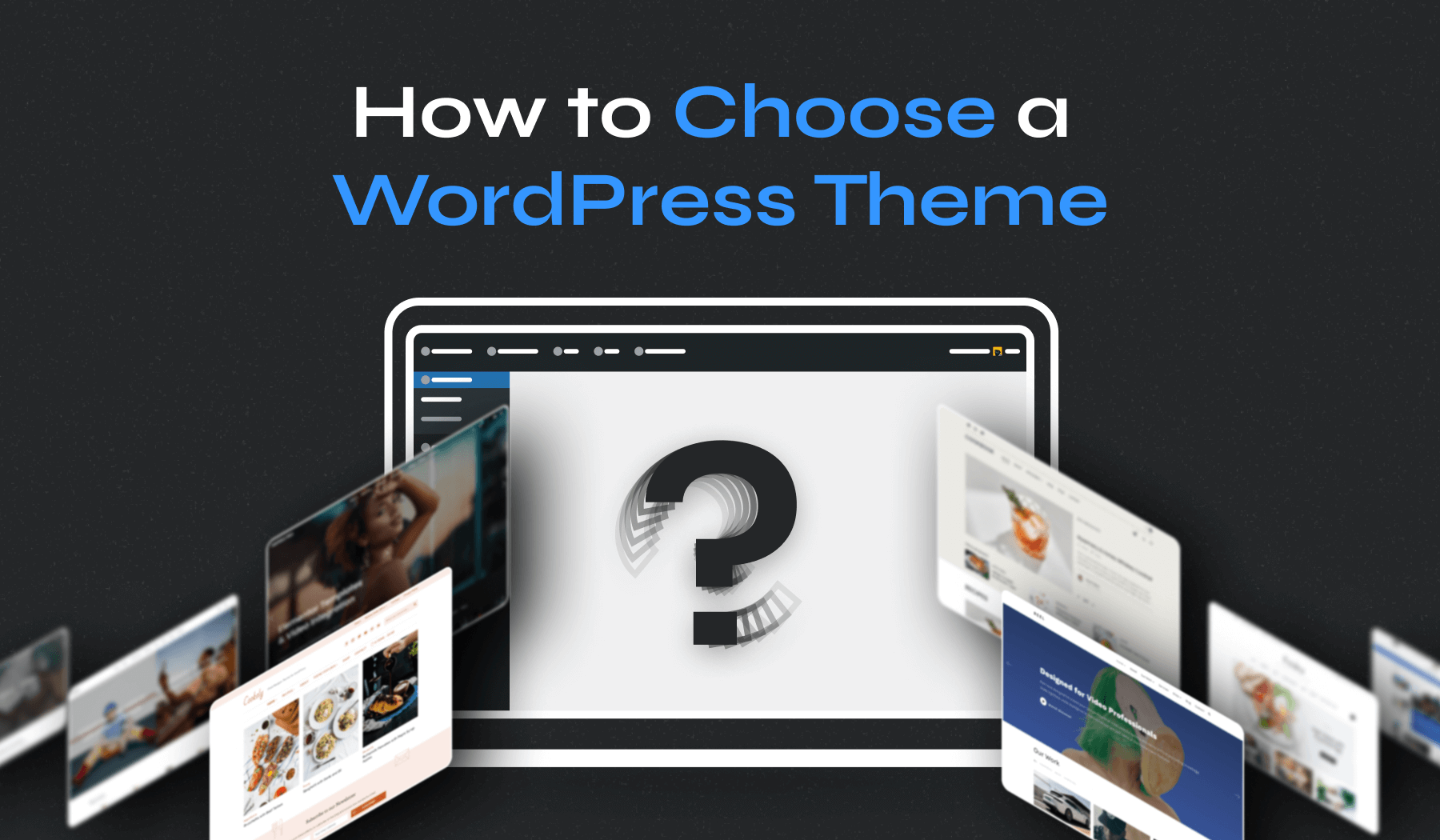
Selecting the right theme is the foundation of a successful website. A theme determines your site's design, layout, and functionality. Here are key factors to consider when choosing a theme:
- Purpose and Industry Fit – Choose a theme that aligns with your website’s goals, whether it’s a blog, e-commerce site, or portfolio.
- Responsive Design – Ensure the theme is mobile-friendly and adjusts well on different devices.
- SEO Optimization – Opt for themes built with clean code and SEO-friendly structures.
- Customization Flexibility – Look for themes that support page builders like Elementor or Gutenberg for easy customization.
- Speed and Performance – Lightweight themes load faster, improving user experience and search rankings.
- Regular Updates and Support – Select themes that are frequently updated and have reliable customer support.
Popular sources for WordPress themes include:
- Free Themes: WordPress Theme Repository (Appearance → Themes → Add New)
- Premium Themes: Theme Forest, Elegant Themes, Studio Press
2. Installing a WordPress Theme from the Dashboard
The easiest way to install a WordPress theme is through the dashboard. Follow these steps:
- Login to WordPress Admin – Access your WordPress admin panel by going to
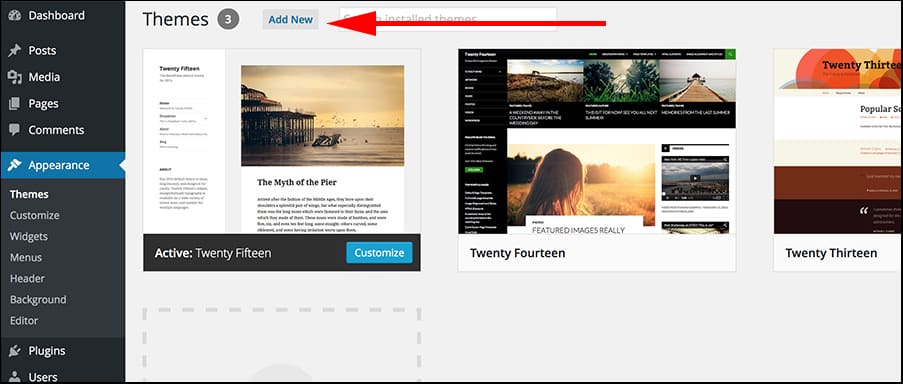
yourdomain.com/wp-admin. - Navigate to Themes – Click on Appearance → Themes from the left sidebar.
- Add a New Theme – Click the Add New button to browse available themes.
- Search for a Theme – Use the search bar to find a theme that suits your needs.
- Install and Activate – Click Install, then activate to apply the theme to your website.
After activation, the theme will replace your existing design, but you can still customize it further.
3. Uploading a Theme Manually
For premium or custom themes, you may need to upload the theme manually. Follow these steps:
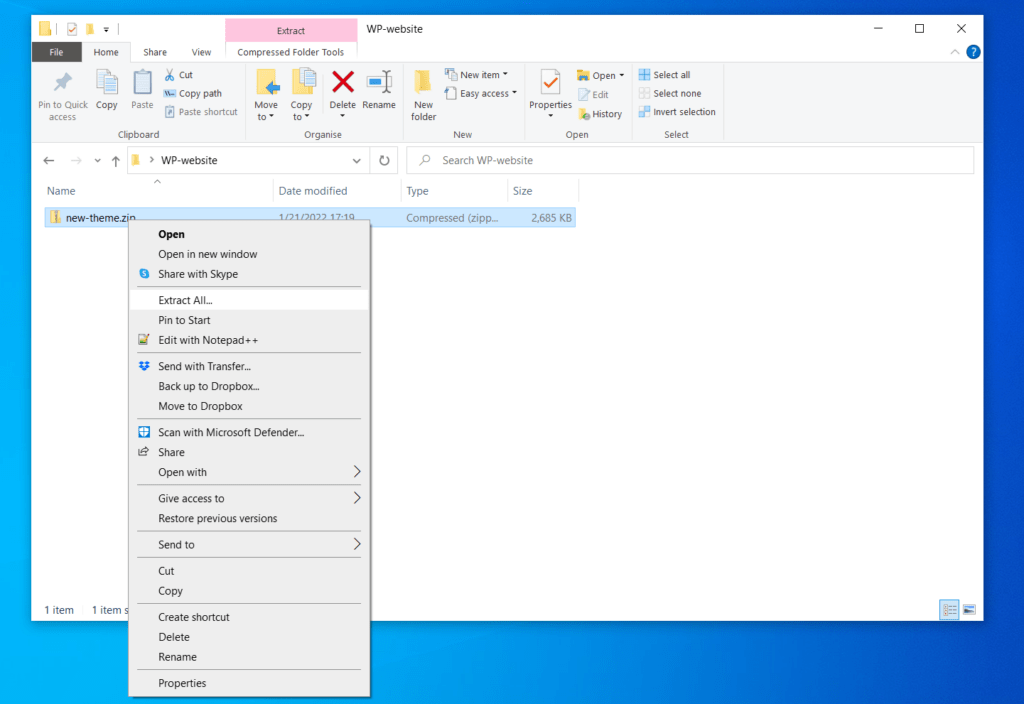
- Download the Theme ZIP File – If purchasing a theme, download the
.zipfile from the theme provider. - Go to the WordPress Admin Panel – Login to your WordPress dashboard.
- Navigate to Appearance → Themes – Click Add New, then select Upload Theme.
- Upload the ZIP File – Click Choose File, select the downloaded
.zipfile, and click Install Now. - Activate the Theme – Once installed, click Activate to apply the theme to your website.
For manual installation via FTP:
- Connect to your server using an FTP client like FileZilla.
- Upload the extracted theme folder to
wp-content/themes/. - Go to Appearance → Themes on WordPress and activate the theme.
4. Customizing Your WordPress Theme
After installation, customize your theme to match your brand identity. Here’s how:
Using the WordPress Customizer
- Navigate to Appearance → Customize – This opens the WordPress Customizer.
- Modify Site Identity – Change the site title, logo, and tagline.
- Adjust Colors and Typography – Customize fonts, background colors, and button styles.
- Edit Layout and Widgets – Configure header, footer, and sidebar placements.
- Enable or Disable Features – Depending on the theme, you can toggle elements like breadcrumbs, sliders, or featured sections.
Using a Page Builder
If your theme supports it, use a page builder like Elementor, WPBakery, or Beaver Builder for drag-and-drop customization.

5. Optimizing for Performance and SEO
A well-optimized theme enhances speed, security, and search engine rankings. Follow these tips:
1. Improve Page Speed
- Use a Caching Plugin – Install WP Rocket or W3 Total Cache to improve loading times.
- Optimize Images – Compress images using Smush or Short Pixel.
- Minimize CSS and JavaScript – Use Autoptimize to reduce code bloat.
2. Enhance SEO
- Install an SEO Plugin – Use Yoast SEO or Rank Math to optimize meta titles and descriptions.
- Enable Schema Markup – Structured data improves search engine visibility.
- Improve Mobile Experience – Test responsiveness using Google’s Mobile-Friendly Test tool.
3. Strengthen Security
- Use SSL – Install an SSL certificate for HTTPS encryption.
- Keep Themes Updated – Regular updates prevent security vulnerabilities.
- Limit Plugins – Only install necessary plugins to avoid performance slowdowns.
By following these steps, your WordPress site will be fully optimized and ready to engage visitors.







Comments 0
Sign in to join the conversation.
No comments yet. Be the first to say something.