


1. Introduction to User Backup Restoration in Direct Admin
Backups are essential for data security, disaster recovery, and website maintenance. In Direct Admin, administrators can restore user accounts using backups stored on the server or external locations. Whether recovering from accidental deletions, migrations, or system failures, the backup restoration process ensures that websites and databases remain intact.
Direct Admin’s built-in backup and restore tools allow admins to efficiently manage user accounts and restore their settings, emails, databases, and files. Understanding how to properly execute this process minimizes downtime and prevents data loss.
2. Benefits of Using Direct Admin for Backup Recovery
Using Direct Admin’s admin tools for backup restoration provides several advantages:
- Quick Recovery: Restore entire accounts, including emails, databases, and settings, with minimal downtime.
- Automated Process: The built-in backup system simplifies restoration without manual file transfers.
- User-Friendly Interface: Direct Admin’s graphical interface ensures an intuitive recovery process.
- Multiple Backup Sources: Restore backups from local directories, remote FTP/SFTP, or cloud storage.
- Data Integrity Protection: Ensures that websites, databases, and user credentials remain intact after restoration.
These benefits make Direct Admin an efficient tool for server administrators managing multiple users.

3. Prerequisites for Restoring a User Backup
Before initiating the restoration process, ensure the following prerequisites are met:
- Administrator Access: You must have Direct Admin privileges to restore user accounts.
- Backup Availability: A valid backup file should be present in the designated backup directory or remote storage.
- Sufficient Server Space: Ensure enough disk space is available for the restoration process.
- Service Compatibility: The Direct Admin version and backup format should be compatible with the target system.
- Temporary Backup of Current Data: While optional, it’s advisable to back up the existing user account before initiating restoration.

4. Step-by-Step Guide to Restoring a User Backup
Step 1: Log in to Direct Admin Panel
- Open Direct Admin and log in using your admin credentials.
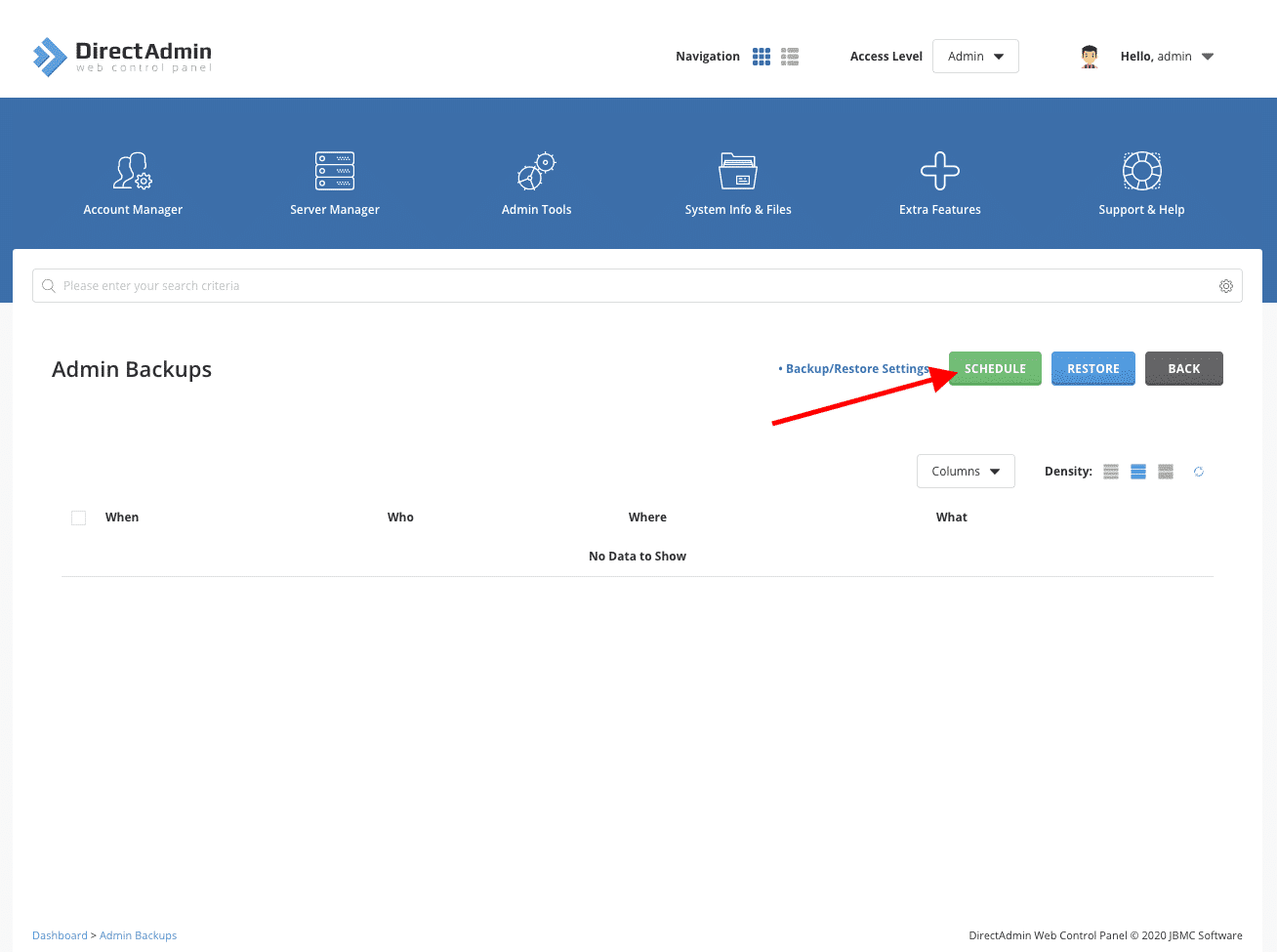
- Navigate to Admin Backup/Transfer under the Admin Tools section.
Step 2: Locate Available Backups
- Click on Restore Backup to access available backup files.
- Select the appropriate backup location (Local, FTP, or Remote Storage).
Step 3: Choose the User Account to Restore
- In the Restore Backup section, select the user account you want to restore.
- Choose which components to restore (e.g., files, databases, emails, settings).
Step 4: Initiate the Restoration Process
- Click Start Restore to begin the process.
- Monitor the progress to ensure no errors occur.
Step 5: Verify the Restoration
- Once completed, navigate to the User Level in Direct Admin.
- Verify that websites, emails, and databases have been successfully restored.
- Test website functionality and database connections to confirm data integrity.

5. Common Issues and Troubleshooting
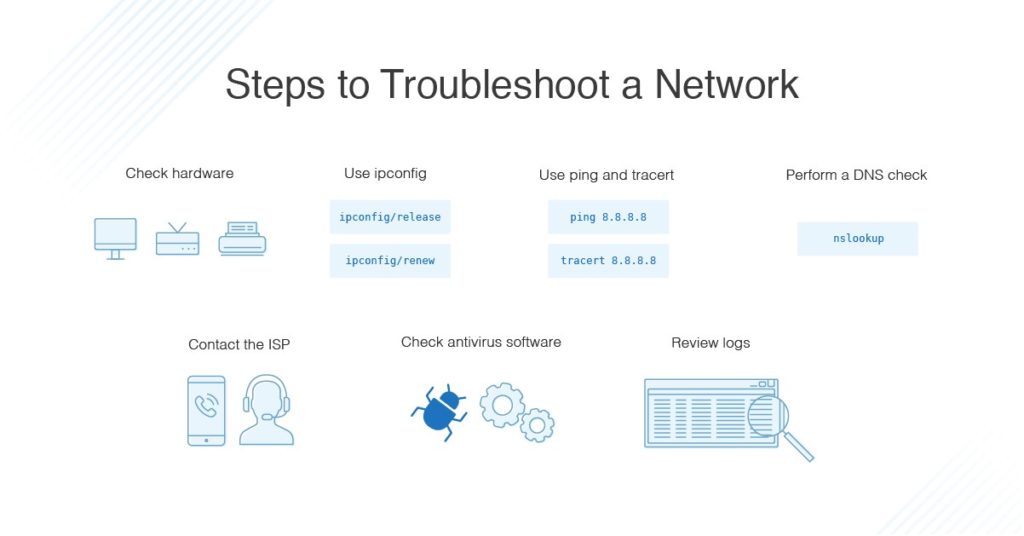
If you experience issues during the restoration process, consider these solutions:
- Backup Not Found: Ensure the backup file is stored in the correct directory or remote location.
- Insufficient Disk Space: Check server storage and free up space if needed.
- Restoration Failure: If the process fails, check Direct Admin logs for error messages (
/var/log/directadmin/error.log). - Database Connection Issues: Verify that database credentials match the restored database settings.
- Missing Emails or Files: Ensure all restoration components were selected during the backup recovery process.
Following these troubleshooting steps helps resolve common restoration challenges effectively.






Comments 0
Sign in to join the conversation.
No comments yet. Be the first to say something.